Finding service URLs
There are two categories of content that have service URLs to put in your app:
- Full mosaics of entire cities
- Some but not all cities have completed content that has been mosaicked
- If you are only interested in full mosaics, head to https://oldinsurancemaps.net/search/#items and find a map that has a green checkmark in the far right GT column. There are filter settings that will allow you to filter by city.
- Individual pages
- Even if a full mosaic isn't complete, then you can still put one or more individual layers onto a map.
Either way, the first step is finding the map of the city you are interested in.
Finding maps
Use any of the methods available on the search page to get to a map. Ultimately, you'll make your way to a "map overview" page that looks like this:
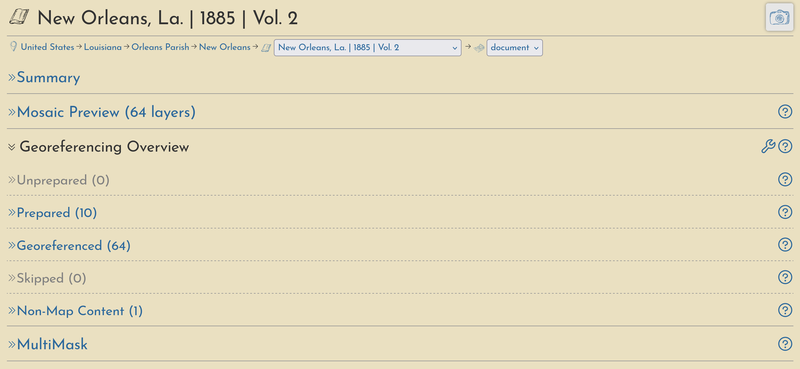
Check for mosaic tileJSON
In the map overview, expand the Summary section. You'll see a "Mosaic Download & Web Services" section. If a mosaic file has been completed, you'll see 5 links under the "Main Content" section as shown below:
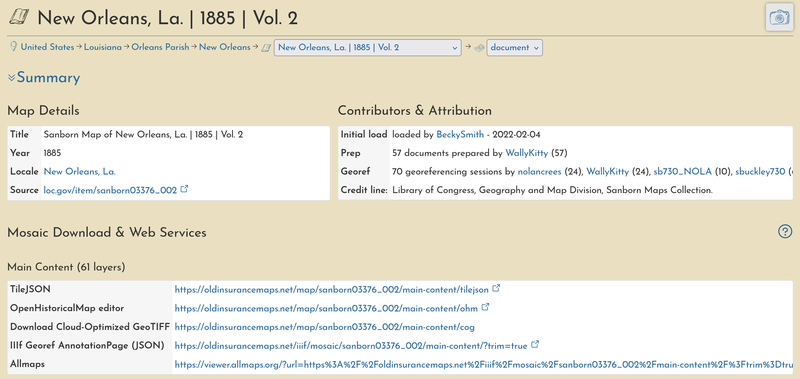
If there is no mosaic, then there will just be 2 urls listed.
Copy the TileJSON url and use it in your code. Or, go to the url and you'll be able to find the XYZ url embedded in it.
Find an individual layer tileJSON
If you want an individual layer, or a mosaic isn't available, you can head down to the Georeferenced section where you will see all of the layers listed. Find the layer you want, and click the "downloads & web services* button:
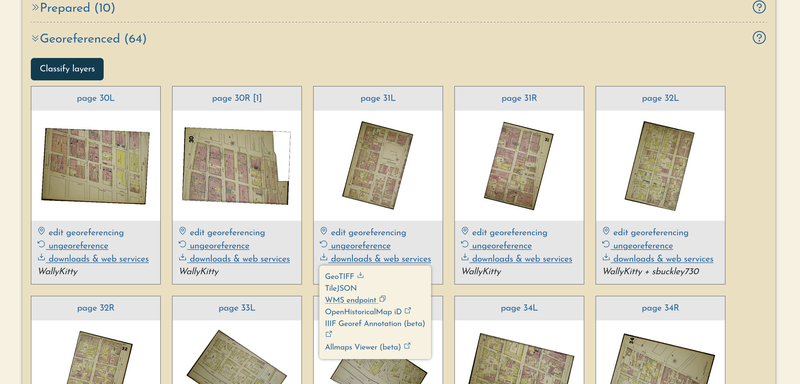
Copy the TileJSON url and use it in your code. Or, go to the url and you'll be able to find the XYZ url embedded in it.